
Mobile data is one of the most important features on a smartphone. It allows you to browse the internet, use social media, send messages through internet-based apps, check email, stream content, use maps, and stay connected when Wi-Fi is unavailable. When mobile data suddenly stops working, your phone may show a cellular signal while websites and apps refuse to connect.
A mobile data problem can be caused by something as simple as disabled cellular data, Airplane Mode, or a temporary network glitch. However, incorrect APN settings, SIM card problems, data restrictions, outdated software, carrier issues, or hardware damage can also prevent a phone from accessing mobile internet.
If you are looking for Cell Phone Repair in Douglasville, GA, understanding the most common causes of mobile data problems can help you determine what to try before seeking professional assistance. Mobile Device Techs can help diagnose smartphone connectivity issues when basic troubleshooting does not solve the problem.
Whether you need Samsung Phone Repair Douglasville, GA, iPhone repair in Douglasville, GA, or assistance with a Samsung tablet, identifying whether the problem is related to your phone, SIM card, settings, or cellular network is an important first step.
Why Is My Phone’s Mobile Data Not Working?
There are several reasons why mobile data may stop working. Some problems affect only one application, while others prevent the entire phone from accessing the internet.
Common causes include:
-
Mobile data being turned off
-
Airplane Mode being enabled
-
Weak cellular coverage
-
SIM card problems
-
Incorrect APN settings
-
Reached data limits
-
Data-saving restrictions
-
Carrier outages
-
Account or plan problems
-
Outdated phone software
-
Temporary network glitches
-
Damaged cellular hardware
The best approach is to start with simple checks and gradually move toward more advanced troubleshooting.
1. Make Sure Mobile Data Is Turned On
The first thing to check is whether mobile data is actually enabled.
Open your phone’s quick settings or Control Center and make sure the cellular data option is turned on.
On some devices, mobile data can be disabled accidentally while changing other settings.
After enabling it, open a website or another internet-based application and test the connection.
If mobile data is already enabled but nothing loads, continue with the next troubleshooting steps.
2. Turn Airplane Mode On and Off
Airplane Mode temporarily disables cellular communication.
Even if Airplane Mode appears to be turned off, toggling it can sometimes help reconnect your phone to the cellular network.
Turn Airplane Mode on for approximately 10–15 seconds, then turn it off.
Wait for your phone to reconnect to the cellular network. Once you see the normal signal indicator, test mobile data again.
This quick process can resolve temporary connection problems without changing your other network settings.
3. Check Your Cellular Signal
Mobile data depends on cellular network coverage. If your phone has weak or no signal, internet access may be unreliable or unavailable.
Look at the signal indicator and consider your current location.
If you are inside a building, basement, parking structure, or remote area, move somewhere with stronger reception.
You can also compare your connection in another location. If mobile data works normally elsewhere, poor coverage may be the primary cause.
If the phone consistently has poor signal in areas where other devices using the same carrier work normally, further troubleshooting may be necessary.
4. Restart Your Smartphone
A simple restart can resolve temporary cellular and software problems.
Restarting the phone closes background processes and forces the device to reconnect to the carrier network.
After restarting, wait until the cellular signal returns completely. Then test mobile data by opening a website or application.
If the connection works after restarting but repeatedly stops later, there may be an underlying software, SIM, or network configuration problem.
5. Check Your Mobile Data Limit
Many smartphones include settings that limit how much cellular data individual applications can use.
If you have reached a data limit, your phone may restrict mobile data automatically.
Review your cellular or mobile data settings and check whether a data limit or warning has been configured.
Also check your carrier account to determine whether your monthly data allowance has been exhausted or whether the account has another restriction.
This is particularly important if mobile data suddenly stops near the end of your billing cycle.
6. Check Data Saver or Low Data Mode
Data-saving features are designed to reduce cellular data usage, but they can sometimes restrict background activity.
Android phones may offer Data Saver, while iPhones include Low Data Mode.
Temporarily disable these features and test the connection.
If mobile data begins working normally afterward, review the settings to determine which applications should be allowed to use cellular data.
7. Check Whether Mobile Data Works in Specific Apps
If some applications work while others do not, the problem may not be your cellular connection.
Check your phone’s settings to make sure the affected application has permission to use mobile data.
For example, an application may have been restricted from using cellular data while remaining available over Wi-Fi.
If websites load normally but one specific app does not, update or restart that application before changing broader network settings.
8. Check Your SIM Card
The SIM card connects your phone to your carrier account and cellular network.
If the SIM card is loose, damaged, incorrectly installed, or not being recognized properly, mobile data may stop working.
Look for messages such as:
-
No SIM
-
SIM Not Detected
-
No Service
-
Emergency Calls Only
If you use a physical SIM, power off the phone before removing it. Inspect the SIM for visible damage and make sure it is seated correctly in the tray.
If possible, testing the SIM in another compatible phone can help determine whether the problem follows the SIM card or stays with the original device.
9. Check Your APN Settings
APN, or Access Point Name, settings help your phone connect to your carrier’s mobile data network.
Incorrect APN settings can prevent mobile internet from working even when the phone shows a strong cellular signal.
This can happen after switching carriers, changing SIM cards, resetting network settings, or making configuration changes.
If you suspect an APN problem, compare the phone’s settings with the configuration provided by your carrier.
Avoid entering random APN information from unverified sources. Incorrect settings can create additional connectivity problems.
10. Check for a Carrier Outage
Sometimes your phone is working correctly and the problem is with the cellular network.
A carrier outage can affect mobile data, calls, or text messages in a particular area.
If possible, check your carrier’s service status or ask someone nearby using the same carrier whether they are experiencing similar problems.
If multiple users are affected, the best solution may be to wait until the carrier resolves the outage.
11. Update Your Phone’s Software
Outdated software can sometimes cause network compatibility or configuration problems.
Check your phone for available operating system updates and install them when appropriate.
Software updates can include fixes for cellular connectivity, modem behavior, networking, and system stability.
Before installing a major update, make sure important data is backed up and your phone has sufficient battery power.
After updating, restart the device and test mobile data again.
12. Reset Network Settings
If mobile data continues to fail, resetting network settings may help.
A network reset can restore cellular, Wi-Fi, and Bluetooth-related configuration to their default state.
Keep in mind that this may remove saved Wi-Fi networks, Bluetooth pairings, and certain network preferences.
Before performing the reset, make sure you know the passwords for important Wi-Fi networks.
Afterward, restart the phone and reconnect to your preferred networks.
Why Is Mobile Data Not Working on an iPhone?
If mobile data is not working on an iPhone, start by checking that Cellular Data is enabled.
Review the Cellular settings to make sure the affected applications are allowed to use mobile data. Also check whether Low Data Mode is enabled.
Restart the iPhone, toggle Airplane Mode, and check for iOS updates.
If the issue continues, check the SIM or eSIM configuration and consider resetting network settings.
If cellular connectivity problems continue alongside other hardware symptoms, professional iPhone repair in Douglasville, GA can help determine whether the issue is related to the phone itself.
Why Is Mobile Data Not Working on a Samsung Phone?
Samsung phones can experience mobile data problems because of network settings, SIM issues, APN configuration, software glitches, carrier restrictions, or weak coverage.
Start by checking Mobile Data, Airplane Mode, signal strength, and data usage settings.
Restart the phone and check for software updates. If necessary, review the APN settings provided by your carrier.
If the phone continues to lose cellular connectivity or has additional problems, professional Samsung Phone Repair Douglasville, GA can help diagnose the device.
Can Physical Damage Affect Mobile Data?
Yes. Although mobile data problems are frequently caused by settings or network issues, physical damage can affect cellular connectivity.
A phone that has been dropped or exposed to water may develop problems with its antenna, modem-related components, SIM reader, or other internal hardware.
If mobile data stopped working after physical damage, professional inspection is recommended rather than repeatedly changing settings.
For customers searching for Cell Phone Repair in Douglasville, GA, a technician can help determine whether the problem is software-related or caused by damaged hardware.
What About Mobile Data Problems on a Samsung Tablet?
Samsung tablets that support cellular connectivity can experience many of the same problems as smartphones.
Check the SIM or eSIM configuration, cellular settings, signal strength, data plan, APN settings, and software updates.
If the tablet has additional problems such as charging issues, touchscreen problems, or repeated system crashes, professional Samsung Tablet Repair in Douglasville, GA can help identify the underlying issue.
When Should You Seek Professional Repair?
Basic troubleshooting can resolve many mobile data problems, but professional assistance may be necessary if the issue continues.
Consider getting your phone inspected when:
-
Mobile data never works despite having strong signal.
-
The SIM card is repeatedly disconnected.
-
The phone displays “No Service.”
-
Calls and text messages are also affected.
-
The device recently suffered physical damage.
-
The phone has been exposed to water.
-
Network settings repeatedly change or fail.
-
The device has other hardware problems.
-
Resetting network settings does not help.
A technician can evaluate the phone’s cellular components and determine whether the issue requires software troubleshooting or hardware repair.
How to Prevent Future Mobile Data Problems
Keeping your smartphone updated and properly maintained can reduce the likelihood of connectivity problems.
Install system updates when appropriate and avoid making unnecessary changes to APN or network settings.
Keep your SIM card and SIM tray clean and protected. If you use a physical SIM, make sure it is properly seated.
Monitor your monthly data usage so you know when you are approaching your plan’s limit.
Protect your phone from drops, moisture, and extreme temperatures, as physical damage can affect internal cellular components.
Final Thoughts
When mobile data stops working, the cause may be something simple such as disabled cellular data, Airplane Mode, weak coverage, a data restriction, or a temporary network glitch. Other cases may involve the SIM card, APN settings, carrier service, outdated software, or damaged hardware.
Start by checking your mobile data settings, restarting the phone, testing your cellular signal, reviewing data restrictions, and inspecting the SIM connection. If these steps do not resolve the issue, resetting network settings or seeking professional diagnosis may be appropriate.
Mobile Device Techs can help diagnose smartphone and tablet connectivity problems and determine the appropriate next step. Whether you need Cell Phone Repair in Douglasville, GA, Samsung Tablet Repair in Douglasville, GA, Samsung Phone Repair Douglasville, GA, or iPhone repair in Douglasville, GA, professional troubleshooting can help identify the actual cause of persistent mobile data problems and restore reliable connectivity.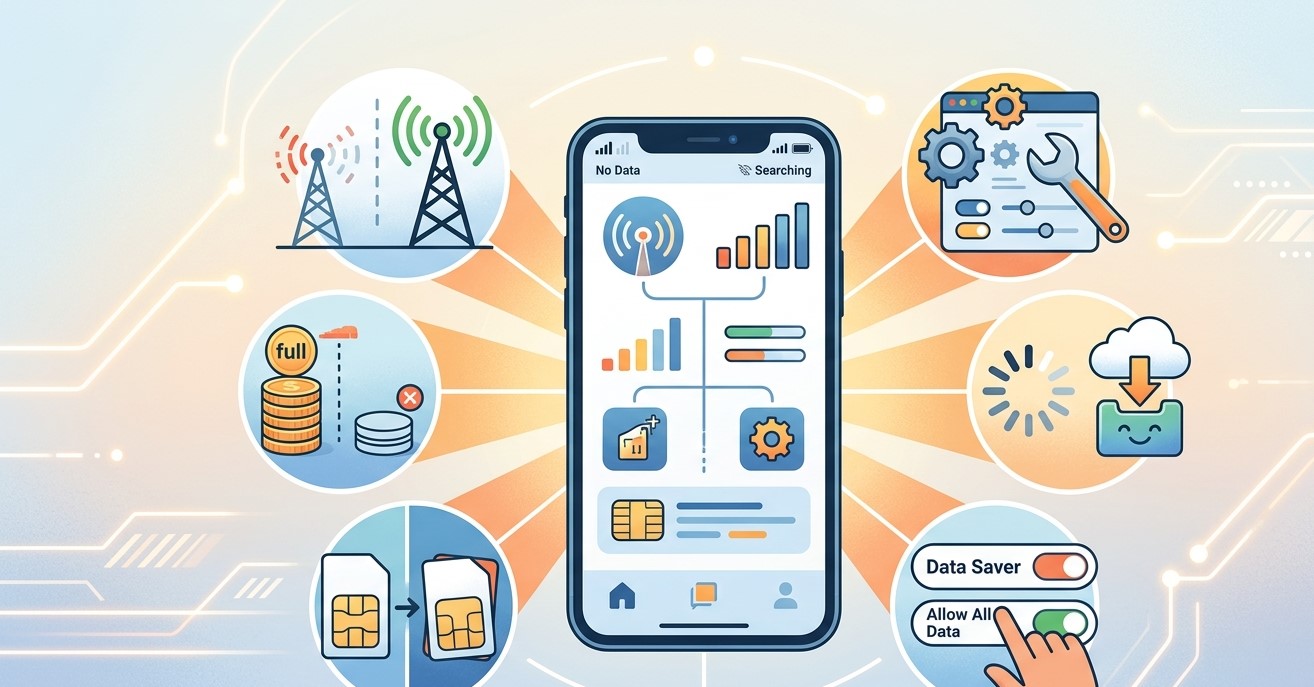
 civicautoglass
  Momentum Tyres
  Majestic taxis