
In today’s digital-first world, Microsoft Teams has become the backbone of collaboration for many organizations. But what happens when your organization undergoes a merger, acquisition, or restructuring? This is when Microsoft Teams tenant to tenant migration becomes a crucial process. I’ve navigated this journey several times, and I know firsthand how challenging it can feel. In this article, I’ll share my insights, step-by-step guidance, common challenges, and practical tips to make your migration smooth.
Understanding Microsoft Teams Tenant to Tenant Migration
At its core, tenant-to-tenant migration is the process of moving all your Teams data from one Microsoft 365 tenant to another. A “tenant” in Microsoft 365 represents your organization’s space in the cloud. Every Teams instance—chats, channels, files, and configurations—is tied to a tenant. So when a company merges or reorganizes, simply transferring user accounts isn’t enough. You need to ensure all Teams data moves intact, without losing history, permissions, or file structures.
From my experience, many administrators underestimate the complexity of this process. Unlike traditional file migrations, Teams data is highly interconnected—messages link to channels, files link to SharePoint sites, and permissions span multiple layers. Any oversight can lead to disrupted workflows or frustrated users.
Why Organizations Migrate Teams Tenants
Several scenarios prompt organizations to migrate Teams tenants:
-
Mergers and Acquisitions – When two companies consolidate, unifying their Teams environments ensures seamless collaboration.
-
Divestitures – If part of a business is spun off, its Teams data must move to a new tenant while preserving history.
-
Tenant Consolidation – Some organizations operate multiple tenants and want to merge them for cost efficiency and simplified management.
-
Compliance and Security Needs – Migration can help organizations align Teams data with new compliance policies or regulatory requirements.
I’ve observed that the planning phase is as important as the technical execution. Without a clear strategy, even small migrations can turn chaotic.
Key Challenges in Teams Tenant Migration
Migrating Teams is not as simple as moving files. Here are the most common challenges I’ve encountered:
-
Preserving Chat History: Users often rely on past conversations for context. Migrating Teams without chat history can disrupt collaboration.
-
Maintaining Channel and Team Structure: Losing the original hierarchy of teams and channels can confuse employees and affect productivity.
-
File and SharePoint Dependencies: Teams files are stored in SharePoint. Any misalignment during migration can break file access.
-
User Mapping and Permissions: Ensuring that every user in the source tenant maps correctly to the target tenant is critical to avoid access issues.
-
Large-scale Data Handling: Organizations with hundreds of teams and thousands of users need tools that can handle massive data volumes efficiently.
I’ve faced situations where improper user mapping caused hours of troubleshooting post-migration. That’s why I always emphasize thorough planning.
Preparing for a Microsoft Teams Tenant Migration
Preparation is 70% of the migration success. Here’s how I usually approach it:
-
Audit Current Teams Environment
I start by documenting all teams, channels, files, tabs, and apps. Knowing the scale of data helps plan the migration timeline. -
Engage Stakeholders Early
Migrating Teams affects every department. I make sure IT, compliance, HR, and business managers are aligned from day one. -
Plan User Mapping
Each user in the source tenant must map to a user in the target tenant. This ensures proper access to files, chats, and team memberships. -
Identify Critical Data
Not every channel or file may need migration. I categorize data as high, medium, or low priority to optimize time and resources. -
Test Pilot Migration
Running a pilot with a small group of users helps identify potential issues before the full migration. -
Communicate With End Users
I always send clear instructions and expectations to users about downtime, changes in Teams structure, and what they need to do post-migration.
Migration Tools and Methods
There are two main ways to migrate Teams data:
-
Manual Migration
Manual migration involves recreating teams, channels, and copying files. While it may work for very small organizations, I’ve found it is time-consuming, error-prone, and impractical for medium-to-large enterprises. -
Automated Migration Tools
Specialized tools automate Teams migration, preserve chat history, maintain channel hierarchy, and ensure data integrity. For instance, I’ve found tools like Systools Microsoft Teams Migration Tool incredibly effective. It simplifies the process, reduces downtime, and ensures that users don’t lose any critical data. I used it during a tenant consolidation project, and it saved me days of manual work while ensuring everything transferred correctly.
Using a dedicated tool reduces risk, speeds up migration, and allows IT teams to focus on planning and user support rather than manual copying.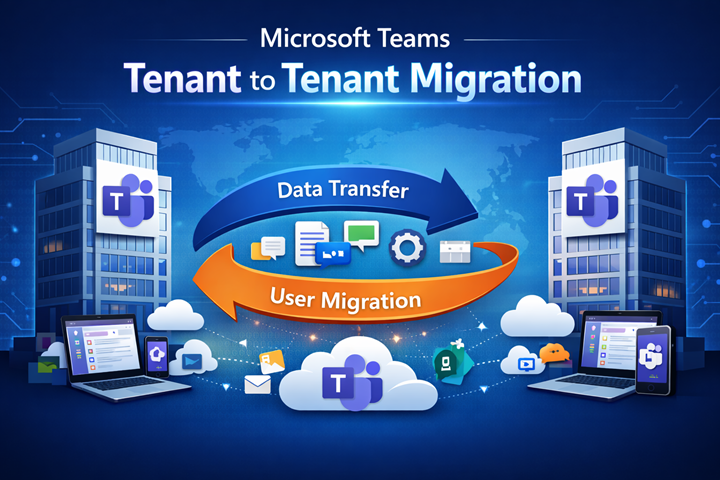
Steps for a Successful Tenant-to-Tenant Migration
Here’s a practical step-by-step approach I follow for a smooth migration:
-
Set Up the Target Tenant
Ensure the new tenant has the required Microsoft 365 licenses, configurations, and governance policies in place. -
Perform Data Assessment
Understand the volume of Teams, channels, chats, files, and apps. Identify any large files that may need special handling. -
Create a Pilot Plan
Select a few users or a small department for initial testing. This helps spot technical or permission-related issues early. -
Map Users and Permissions
Ensure all users in the source tenant have counterparts in the target tenant with correct permissions. -
Migrate Teams in Phases
I prefer phased migration—starting with less critical teams, then moving essential teams. This approach minimizes disruption. -
Validate Data Post-Migration
After each phase, I check channels, files, tabs, apps, and chat history to ensure everything transferred correctly. -
End User Support
Users may need help adjusting to the new tenant. I provide clear guides and support channels to address common concerns.
Common Mistakes to Avoid
Even with careful planning, mistakes happen. Based on my experience, here are some pitfalls to avoid:
-
Skipping Pilot Migration – Jumping straight into full-scale migration often leads to errors.
-
Ignoring Dependencies – Teams files, tabs, and apps may rely on SharePoint or third-party integrations. Ignoring them can break functionality.
-
Rushing the Process – Migration takes time. Trying to complete it in a few hours often leads to incomplete transfers.
-
Poor Communication – Not informing end-users about the process creates confusion and support tickets.
-
Not Testing Post-Migration – Skipping validation can leave issues unnoticed until users encounter them.
Best Practices for Smooth Migration
Here are a few best practices I follow to ensure success:
-
Document Everything – Keep detailed records of teams, channels, permissions, and apps before migration.
-
Use Migration Tools Wisely – Automate repetitive tasks while keeping manual checks for critical data.
-
Communicate Frequently – Update users regularly about progress, downtime, and expected changes.
-
Schedule Migration During Off-Peak Hours – Reduces impact on productivity.
-
Have a Rollback Plan – In case something goes wrong, having a backup or contingency plan helps mitigate risk.
Post-Migration Considerations
Migration doesn’t end when data is transferred. I always perform post-migration checks:
-
Verify Data Integrity – Ensure all files, chats, and permissions are intact.
-
Monitor User Access – Confirm users can access all teams and channels without issues.
-
Clean Up Unnecessary Teams – Remove duplicate or obsolete teams from the target tenant.
-
Collect Feedback – Ask users about any difficulties and resolve them promptly.
Final Thoughts
Migrating Microsoft Teams from one tenant to another is no small feat. It requires meticulous planning, the right tools, and clear communication with end-users. I’ve learned that while manual methods might seem simple, they can lead to errors and wasted time. Leveraging specialized tools, understanding dependencies, and adopting a phased approach make the process manageable and less stressful.
If I had to sum it up, preparation is the secret to success. By auditing your environment, mapping users carefully, testing thoroughly, and using automation tools smartly, you can complete your Microsoft Teams tenant to tenant migration with minimal disruption and maximum efficiency.
 chahar technologies
  softkingo
  anny duperey