
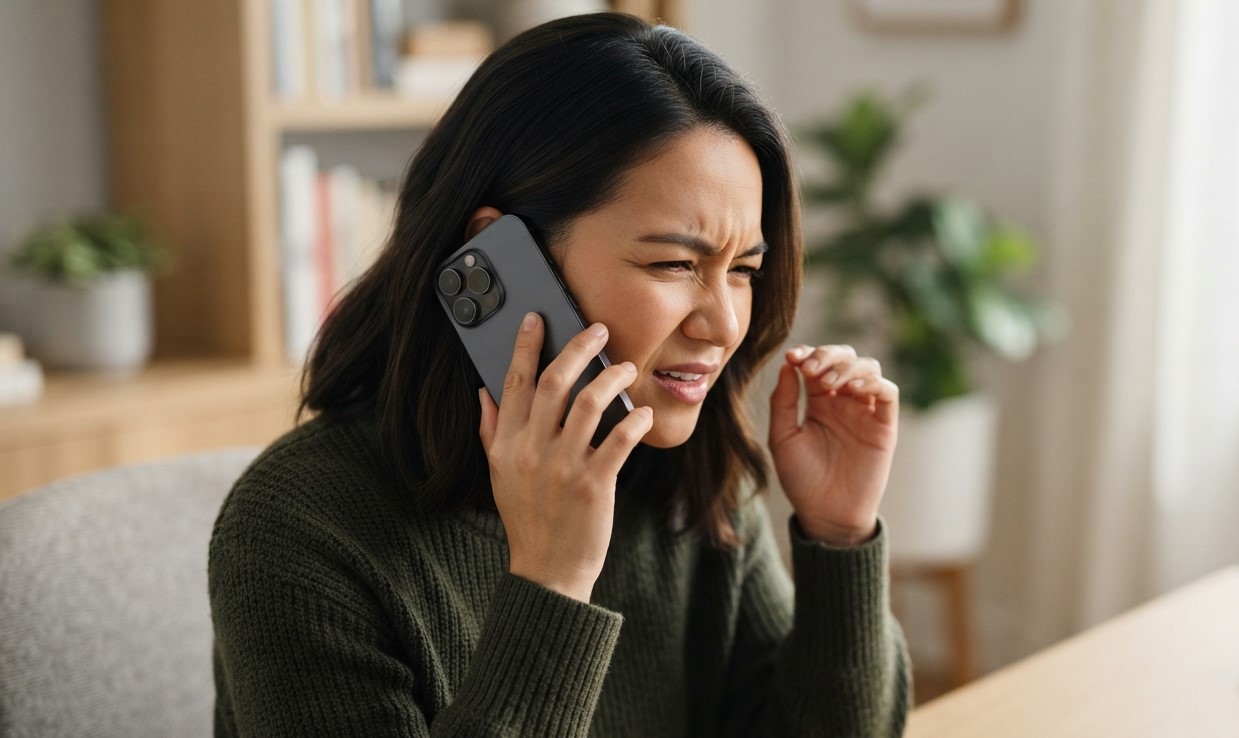
If your iPhone sounds normal when playing music or watching videos but becomes unusually quiet during phone calls, the problem can be confusing. You may turn the volume all the way up and still struggle to hear the person on the other end. In many cases, the issue is related to the call audio path, the receiver opening, a case or screen protector, network conditions, or a software setting rather than the main speaker itself.
For anyone looking for cell phone repair brooklyn ny, it is helpful to understand what can cause low call volume before assuming that a replacement part is needed. Avenue D Cellular can help troubleshoot iPhone audio problems and determine whether the issue is related to settings, network conditions, or hardware. If basic troubleshooting does not restore normal call volume, professional iphone repair brooklyn service may be appropriate.
Table of Contents
- Why Is My iPhone Volume Low Only During Calls?
- Increase the Volume While You Are on a Call
- Check the iPhone Receiver
- Remove Your Case or Screen Protector
- Clean the Receiver Opening Carefully
- Check Your Call Audio Route
- Turn Off Bluetooth Temporarily
- Test Speakerphone
- Check Your Network and Reception
- Restart Your iPhone
- Update iOS
- Check for Carrier Settings Updates
- Could Accessibility or Audio Settings Affect Calls?
- Could a Software Problem Cause Low Call Volume?
- Could Hardware Damage Cause Low Call Volume?
- When Should You Get Professional Repair?
- Frequently Asked Questions
- Conclusion
- Call to Action
Why Is My iPhone Volume Low Only During Calls?
The iPhone uses different audio paths for different activities. Music and videos may play through the main speaker, while a normal phone call held to your ear uses the small receiver at the top of the iPhone.
This means your media audio can sound perfectly normal while call audio remains quiet.
Apple recommends checking the receiver opening for blockage or debris, removing cases and screen protectors that could interfere with sound, and testing the phone during a call.
Common causes include:
- Call volume being turned down
- A blocked or dirty receiver
- A screen protector covering part of the receiver
- A case interfering with the receiver
- Bluetooth routing call audio elsewhere
- Weak network reception
- Temporary software problems
- Outdated iOS or carrier settings
- Internal receiver or audio hardware damage
Fortunately, many of these causes can be checked at home.
Increase the Volume While You Are on a Call
One of the first things to try is increasing the volume while the call is actually in progress.
During a phone call, press the Volume Up button several times.
The iPhone’s volume buttons adjust the volume for whatever audio is currently playing. During a call, they can therefore adjust the call’s audio level.
This is important because changing the volume when you’re not on a call may affect another type of audio instead.
After increasing the volume, ask the other person to speak normally and see whether the call is easier to hear.
Check the iPhone Receiver
If your iPhone’s music, videos, and speakerphone sound normal but regular calls are quiet, the receiver at the top of the device deserves attention.
The receiver is the small opening near the top of the screen that directs call audio toward your ear.
Dust, debris, or other material can partially block it and reduce the perceived volume.
Apple recommends checking the receiver opening when call audio is difficult to hear.
Look closely under good lighting and see whether the opening appears blocked.
Remove Your Case or Screen Protector
A case or screen protector can sometimes interfere with the receiver if it does not fit correctly.
This can happen when:
- A screen protector is misaligned
- A case covers part of the receiver
- The protector has adhesive or debris around the opening
- The case was designed for a different iPhone model
Apple recommends removing screen protectors, films, and cases when troubleshooting sound problems.
Try making a test call after removing them.
If the volume suddenly improves, the accessory may be interfering with the receiver.
Clean the Receiver Opening Carefully
If the receiver looks dirty, clean it carefully.
Use a small, clean, dry, soft-bristled brush to gently remove visible debris.
Apple specifically recommends a small, soft-bristled brush when cleaning blocked speaker or receiver openings.
Avoid pushing anything deep into the opening. Do not pour liquid into the receiver and avoid aggressive cleaning methods that could damage internal components.
If the opening remains blocked after gentle cleaning, professional cleaning may be safer than trying to remove debris with sharp objects.
Check Your Call Audio Route
Sometimes the problem isn’t the volume at all—the call audio may be going somewhere other than the iPhone receiver.
During a call, tap the Audio option and check which audio destination is selected. Apple explains that call audio can be switched between the iPhone speaker and connected Bluetooth devices.
If your iPhone is connected to:
- AirPods
- Bluetooth headphones
- A car system
- Another compatible audio device
the call may be routed through that device.
Select the iPhone as the audio destination and check whether the volume returns to normal.
Turn Off Bluetooth Temporarily
If you are not intentionally using Bluetooth during calls, temporarily turn it off and make another test call.
A connected Bluetooth device may receive call audio instead of the iPhone’s receiver.
This is especially worth checking if the problem started after you connected your iPhone to a vehicle, headphones, earbuds, or another Bluetooth accessory.
If call volume returns to normal after disconnecting the accessory, the problem may be related to audio routing rather than the iPhone’s receiver.
Test Speakerphone
Speakerphone is a useful diagnostic test.
During a call, tap the Speaker option.
If the person suddenly becomes loud and clear on speakerphone but remains extremely quiet when you hold the iPhone to your ear, the problem may be specific to the receiver or its opening.
If both the receiver and speakerphone are unusually quiet, the cause could instead involve software, network conditions, audio settings, or a broader hardware problem.
Apple recommends testing a call with speakerphone when investigating sound problems.
Check Your Network and Reception
Poor cellular reception can affect call quality.
If the other person’s voice sounds faint, distorted, broken up, or intermittent, the issue may not simply be the speaker volume. Network or reception conditions can affect what you hear during a call.
Try:
- Moving to another location
- Going outdoors
- Calling from an area with stronger reception
- Turning Airplane Mode on and off
- Making another test call
Apple notes that network or reception can contribute to call sound problems and recommends trying a different location when appropriate.
If calls sound normal in one location but poor in another, network conditions may be involved.
Restart Your iPhone
A temporary software problem can sometimes affect call audio.
Restart your iPhone and then make another test call.
After restarting, increase the call volume using the side buttons while the call is active.
If the problem disappears after restarting but returns later, keep track of when it happens. A recurring software issue may require additional troubleshooting.
Update iOS
If your iPhone is running an outdated version of iOS, installing available updates may help resolve unexpected software behavior.
Go to:
Settings → General → Software Update
If an update is available, review the details and install it when appropriate.
It is also a good practice to maintain a current backup of important information before major software updates.
Check for Carrier Settings Updates
Carrier settings help your iPhone communicate with your mobile network.
If you’re experiencing low call audio along with dropped calls, connection problems, or other cellular issues, check whether a carrier settings update is available.
You can generally check by going to:
Settings → General → About
If an update is available, your iPhone may display a prompt.
Apple recommends checking carrier settings and iOS updates when troubleshooting calling problems.
Could Accessibility or Audio Settings Affect Calls?
Certain audio-related settings can influence how sound behaves on an iPhone.
For example, Apple provides options for controlling speaker volume and reducing loud sounds. These settings are primarily designed for speaker and headphone audio rather than specifically controlling the receiver during normal phone calls.
If you have changed accessibility or audio settings recently, review them to make sure nothing unexpected is affecting your audio experience.
Also check whether your phone is connected to another audio device.
Could a Software Problem Cause Low Call Volume?
Yes.
If the receiver is clean, no case or screen protector is blocking it, Bluetooth is disconnected, and your network reception is good, software could be contributing to the problem.
Possible software-related causes include:
- Temporary iOS glitches
- Audio-routing problems
- Incorrect settings
- Problems following an iOS update
- Conflicts involving connected accessories
- Temporary cellular software problems
Restarting the iPhone, checking audio routing, updating iOS, and checking carrier settings are reasonable troubleshooting steps before considering hardware repair.
Could Hardware Damage Cause Low Call Volume?
Yes. If basic troubleshooting does not improve the problem, hardware should be considered.
Potential hardware-related causes include:
- A damaged receiver
- Internal audio component problems
- Liquid exposure
- Damage after a drop
- Debris trapped inside the receiver
- Damage from a previous repair
- A damaged display or related component affecting the receiver area
Hardware becomes more likely when the problem started immediately after physical damage or liquid exposure.
If the receiver remains extremely quiet even after cleaning and software troubleshooting, professional inspection may be appropriate.
When Should You Get Professional Repair?
You should consider professional inspection if:
- Call volume remains very low at maximum volume
- Speakerphone works but the receiver does not
- The receiver appears damaged
- The problem started after a drop
- The iPhone was exposed to liquid
- Cleaning does not improve the volume
- Multiple audio functions are affected
- Calls have persistent distortion or crackling
- Software and network troubleshooting have not helped
A technician can inspect the receiver and related components without immediately assuming that a major repair is necessary.
Getting the actual cause identified first can help prevent unnecessary part replacements.
Frequently Asked Questions
1. Why is my iPhone quiet only during phone calls?
Normal calls use the receiver near the top of the iPhone, while music and videos may use the main speaker. A blocked receiver, case, screen protector, audio routing issue, or hardware problem can therefore affect calls without affecting media audio.
2. How do I increase the volume during an iPhone call?
While the call is active, press the Volume Up button on the side of your iPhone. The buttons adjust the audio that is currently playing.
3. Can a screen protector make iPhone calls quiet?
Yes. If a screen protector is incorrectly positioned and partially covers the receiver opening, it can interfere with call audio. Apple recommends removing screen protectors when troubleshooting sound problems.
4. Can dust make my iPhone receiver quiet?
Yes. Debris blocking the receiver opening can reduce the sound reaching your ear. Apple recommends checking the receiver and using a clean, dry, soft-bristled brush if cleaning is necessary.
5. Why is speakerphone loud but the normal call volume is low?
If speakerphone sounds normal while the receiver is quiet, the issue may be specific to the receiver, its opening, or something interfering with the receiver’s sound output.
6. Can Bluetooth make my iPhone call volume seem low?
Yes. If call audio is routed to connected Bluetooth headphones, earbuds, a vehicle, or another device, you may not hear the call clearly through the iPhone itself. Check the audio destination during the call.
7. Can poor network reception cause quiet calls?
Network or reception problems can affect call audio quality, including clarity and interruptions. Try making a call from another location to see whether the problem changes.
8. Do I need to replace my iPhone if the call volume is low?
Not necessarily. Many causes can be resolved through simple troubleshooting, cleaning the receiver, removing an interfering accessory, changing the audio route, or addressing software or network issues. If those steps fail, professional diagnosis can determine whether hardware repair is necessary.
Conclusion
When your iPhone’s volume is low only during phone calls, the problem is often connected to the receiver rather than the main speaker. A blocked receiver, poorly positioned screen protector, case, Bluetooth connection, network condition, or temporary software issue can all affect how clearly you hear the person on the other end.
Start by increasing the volume while you’re actively on a call, then check the receiver, remove your case or screen protector, disconnect Bluetooth devices, test speakerphone, and try another location. Restarting your iPhone and checking for iOS or carrier updates can also help.
For cell phone repair brooklyn ny, Avenue D Cellular can help troubleshoot iPhone call-audio problems and determine whether the cause is related to settings, network conditions, or hardware. If the receiver remains quiet after basic troubleshooting, professional iphone repair brooklyn service can help identify whether the device needs repair.
Call to Action
Can’t hear people clearly on your iPhone even with the volume turned all the way up? Start with the simple checks above. If the receiver remains unusually quiet, distorted, or completely silent, have your iPhone professionally inspected to identify the cause before replacing any parts.
 civicautoglass
  Momentum Tyres
  Majestic taxis