
Top Tools to Break PDF Password Security in 2026

In today’s digital age, the use of PDF files has become very common. Often, for security reasons, we password-protect PDFs, but over time, forgetting that password becomes a major problem. This is especially true when working on Windows 11 (2026); if a PDF is password-protected & won’t open, it can bring work to a standstill.
In this blog, we will explain how you can remove a PDF password using a PDF Password Remover, covering both manual methods & third-party tools.
What is PDF password protection?
PDF files typically have two types of security:
- Open Password: A password is required to open the PDF.
- Owner Password: Prevents copying, printing, or editing the PDF.
If you have the password, removing it is easy. However, it can be difficult without the right tools.
Method 1:- How to remove a PDF password using the manual method (if you know the password)
If you know the PDF password, you don’t need a program to get rid of the security protection.
Steps to remove the password using Adobe Acrobat:
- Open Adobe Acrobat Pro in Windows 11
- Open the password-protected PDF file
- Enter the correct password
- Go to File > Properties > Security
- Select “No Security” as the Security Method
- Save the PDF
This method is secure,
But it only works if the password is already known.
Method 2: Using a Third-Party PDF Password Remover Tool (The easiest method in 2026)
A PDF Password Remover Program is the finest option if you need a quick remedy or can’t remember the password.
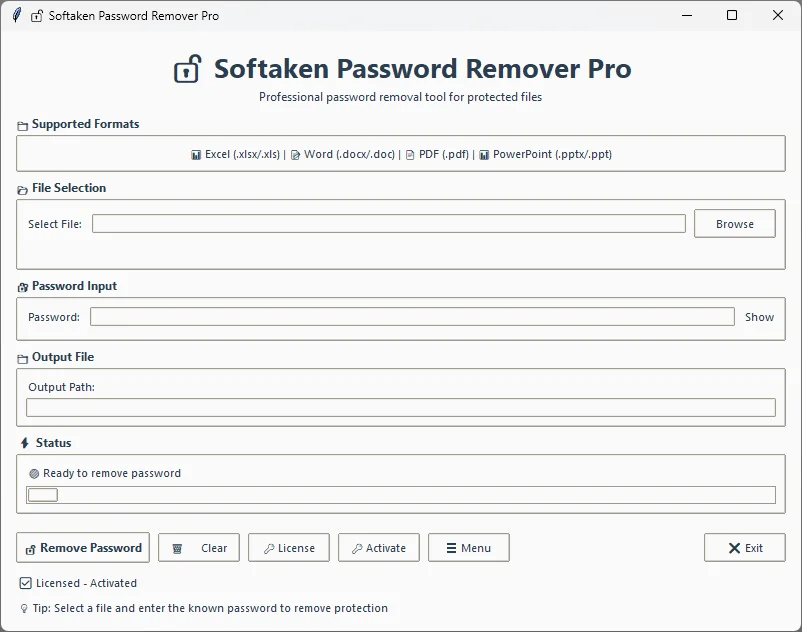
A simple user-friendly program called Softaken Freeware PDF Password Remover is designed especially to get rid of security limitations from PDF files. For users who want to read, print, or edit their PDF files without any restrictions, this software is helpful in removing open passwords or other restrictions.
Key Features of Freeware PDF Password Remover
- Securely removes passwords from PDF files
- Preserves the original data & formatting of the file
- Simple & user-friendly interface
- Can be used without any technical knowledge
- Freeware tool, no cost involved
- Supports all major Windows versions
How to use Freeware PDF Password Remover?
- Download and install Freeware PDF Password Remover
- Open the software
- Add the password-protected PDF using the “Add PDF File” option
- Choose the output location
- Click the “Remove Password” button
- Your PDF file will be unlocked in no time
Finally:-
The manual technique is a good choice if you can remember the PDF password. However, a PDF Password Remover application is the safest & most efficient way to unlock PDF files or if you have forgotten the password.
Because of its time-saving & risk-free features, PDF Password Remover could be an essential tool for Windows 10/11 users by 2026.
 rk5445750
  chandutechsprout@gmail.com
  hadiaali