
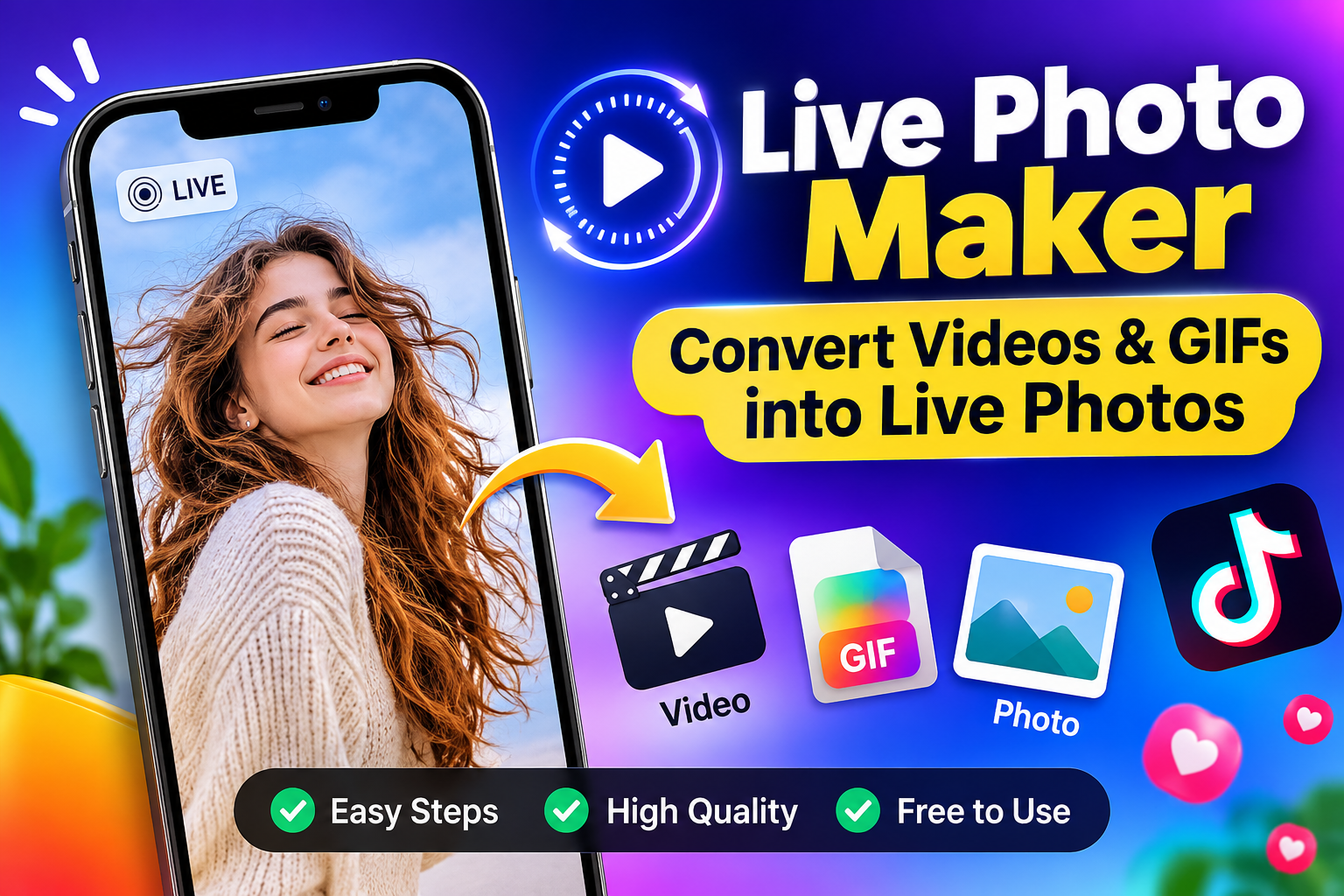
Have you ever captured a perfect moment in a video and wished you could save it as a Live Photo? Whether it’s a memorable TikTok clip, a funny GIF, or a short video from your camera roll, you can turn it into a moving photo using the right tools.
You can turn a video into a Live Photo on an iPhone by using a compatible third-party converter app. Simply choose your video, trim the section you want, select a cover frame, and export it as a Live Photo. For GIFs, you may need to convert the animation into a video first. Android users can use compatible Motion Photo or live wallpaper apps, depending on their device.
In this guide, you’ll learn how to use a Live Photo Maker, convert videos and GIFs, use CapCut, save TikTok videos as Live Photos, and create photo slideshows for TikTok.
What Is a Live Photo?
A Live Photo is a feature on Apple devices that captures a short moment of movement and sound around a picture. Instead of saving only one still image, your iPhone records about 1.5 seconds before and after you press the shutter.
When you open the picture in the Photos app and press and hold it, the captured moment comes to life.
Live Photos are useful for capturing moving subjects, memorable moments, travel experiences, and everyday memories. You can also apply effects such as Loop, Bounce, and Long Exposure to change how a Live Photo looks.
How to Turn a Video into a Live Photo on iPhone
If you already have a video saved in your camera roll, you don’t need to record the moment again. A video-to-Live Photo converter can help you select a short section and save it as a Live Photo.
Follow these steps:
- Open a compatible video-to-Live Photo converter app, such as intoLive.
- Allow the app to access the videos in your Photos library.
- Select the video you want to convert.
- Trim the video to keep your favourite moment.
- Choose the frame you want to display as the cover or key photo.
- Adjust the duration and other available settings.
- Preview the result and select the option to create or save the Live Photo.
- Open your iPhone Photos app and check the saved result.
Tip: Choose a short video with clear movement and good lighting. Trim unnecessary sections to make the final Live Photo more appealing. The exact duration, export options, and free features depend on the converter app and your iOS version.
How to Convert a GIF to a Live Photo
GIFs are animated images that play a short sequence repeatedly. However, an animated GIF is not automatically an Apple Live Photo. You may need to convert it into a video before creating a Live Photo.
Here is a simple way to do it:
- Find and save the GIF you want to use.
- If your GIF app offers a video export option, save the animation as an MP4 or MOV file.
- If not, use a compatible GIF-to-video converter.
- Open your video in the Live Photo converter.
- Import the newly created video.
- Select the part of the animation you want to keep.
- Choose a cover frame and preview the result.
- Export and save the Live Photo to your Photos library.
Important: Renaming a GIF file to MP4 does not convert its format. You need an actual video conversion process before importing it into a Live Photo app.
How to Make a Video a Live Photo Using Different Methods
There are several ways to create a Live Photo, depending on where your original video is saved and which device you use.
1. Using a Live Photo Maker App
A dedicated Live Photo Maker app is one of the easiest options for iPhone users. Apps such as intoLive and VideoToLive offer different video conversion and editing features. Depending on the app, you may be able to:
- Select videos from your camera roll.
- Trim clips to your preferred length.
- Choose a key photo.
- Adjust video speed.
- Combine multiple photos or video clips.
- Save the finished result as a Live Photo.
Some features may require an in-app purchase, so check the export limitations before choosing an app.
2. Using TikTok Videos
If you want to turn a TikTok video into a Live Photo, check whether TikTok provides the Live Photo option in its sharing menu.
Try these steps on a compatible iPhone:
- Open TikTok.
- Find the video you want to save.
- Tap the Share arrow.
- Look for the Live Photo option in the available sharing actions.
- Select it if available.
- Wait for the video to process.
- Open your Photos app to check the saved Live Photo.
Note: The Live Photo option may not appear for every video or account. Download and sharing permissions, device compatibility, and app availability can affect the options you see. If the option is missing, use a video you are permitted to download and a compatible converter app instead.
3. Using CapCut
CapCut is a popular video editing app that can help prepare your video before converting it into a Live Photo. However, exporting a normal video from CapCut does not automatically make it an Apple Live Photo. You need a separate compatible converter for the final conversion.
Follow this workflow:
- Open CapCut and start a new project.
- Select the video you want to use.
- Trim the clip to your preferred section.
- Add effects, filters, or adjustments if needed.
- Export the edited video to your device.
- Open a compatible video-to-Live Photo converter.
- Import the exported CapCut video.
- Select the desired cover frame and save it as a Live Photo.
This method is useful when you want to edit your video before turning it into a moving photo.
4. Using an Online Video to Live Photo Converter
An online converter may help you prepare your video without installing a desktop editing program. However, there is an important difference between generating a video file and creating a native Apple Live Photo.
A genuine Live Photo requires a paired still image and motion component with compatible metadata. Some online tools only generate an MP4, MOV, or GIF file. These files will not necessarily appear as native Live Photos in your iPhone library.
Before using an online converter:
- Check which output formats it supports.
- Confirm whether it creates a native Live Photo or only a video.
- Check whether the final import requires an additional iPhone app.
- Review its privacy policy before uploading personal videos.
How to Convert Video to Live Photo on Android
Android devices do not use Apple’s native Live Photo format as their standard moving-photo feature. Instead, many Android phones support Motion Photos or similar manufacturer-specific features. If you want to convert a video into a moving photo on Android, you can try a compatible third-party application.
Here is the general process:
- Open the Google Play Store or your device’s official app store.
- Search for a video-to-Motion-Photo or live wallpaper converter.
- Check whether the application supports your phone model.
- Install the app and select your video.
- Trim the video to the desired section.
- Adjust the available settings.
- Export the result in the format supported by your device.
- Open your gallery and check whether the moving photo plays correctly.
Can Android create an Apple Live Photo?
Not natively in the same way as an iPhone. Android Motion Photos and Apple Live Photos use different implementations. If you want to share the result with an iPhone user, check whether the app supports Apple-compatible Live Photo export rather than assuming an Android Motion Photo will work on iOS.
How to Make Multiple Photo Videos on TikTok
Want to turn several pictures into one TikTok video? TikTok allows you to upload multiple images and create a photo slideshow or photo-mode post.
Follow these steps:
- Open TikTok and tap the plus (+) button.
- Tap Upload.
- Switch to the Images or Photos section.
- Select multiple pictures from your gallery.
- Tap Next to continue.
- Arrange and edit your pictures using the available tools.
- Add music, text, filters, or transitions where available.
- Preview your content.
- Add a caption and publish your post.
This is a useful way to turn travel pictures, product images, personal memories, or event photos into engaging TikTok content.
Tip: Select pictures that follow a natural sequence. A clear beginning, middle, and ending can make your slideshow easier to follow.
How to Make Multiple Live Photos into a Video on TikTok
If you already have several Live Photos on your iPhone, you can combine their moving moments into a video before uploading it to TikTok.
One convenient option is to use Apple’s Photos app.
- Open the Photos app on your iPhone.
- Go to Collections and find the Live Photos album.
- Tap Select.
- Choose the Live Photos you want to combine.
- Open the More options menu.
- Select Save as Video if the option is available.
- Find the resulting video in your library.
- Open TikTok and upload the video.
- Add music, captions, or other edits before publishing.
This method is useful when you want to share several moving memories in one TikTok post. You can also use a video editing app to combine the exported clips, add transitions, and arrange them in your preferred order.
Can You Add Pictures to a TikTok Video After Posting?
No, TikTok does not generally let you insert new pictures into the original video after it has been published. You can make certain edits before publishing, but changing the actual media in an already published post is a different matter.
If you forgot to include a picture, you have a few alternatives:
- Create a new video with the missing pictures.
- Upload the corrected version as a new post.
- Use a follow-up post to share additional images.
- Add relevant information in the comments or caption if you only need to explain something.
If you want to add pictures to your video, it is better to complete the editing before tapping Post.
How to Add Pictures to a TikTok Video After Recording
You can add pictures or visual elements while editing a video before publishing it.
- Record or upload your video to TikTok.
- Open the editing screen.
- Use the available editing tools to add stickers or visual elements.
- If you want to insert full-screen photos between video clips, use the editing timeline or upload the images and videos together.
- Preview the result and make any necessary changes.
- Publish when you are satisfied.
Remember that adding a sticker or photo overlay is not the same as inserting a full-length photo clip into your video.
Tips for Creating Better Live Photos
A good Live Photo is not just about converting a file. The original video and your editing choices also affect the final result.
Here are some useful tips:
- Choose clear videos: Avoid blurry or heavily compressed clips.
- Keep the important movement: Select the part that captures the main action.
- Pick a suitable key photo: Choose a frame that looks good as a still image.
- Avoid unnecessary effects: Too many filters or edits can reduce visual quality.
- Check the final result: Open the exported file and confirm that it plays as a Live Photo.
- Keep the original video: Save a backup in case you want to make changes later.
How Live Photos Can Support Your Social Media Content
Live Photos can be a creative starting point for making short videos, visual stories, and social media posts. You can turn memorable moments into video clips, combine multiple pictures, and prepare content for platforms such as TikTok.
However, creating content is only one part of building a social media presence. Creators also need to think about content quality, consistency, audience interests, and engagement.
For creators who want additional support with their TikTok presence, LikesForYou offers social media growth packages, including TikTok followers, views, likes, and comments.
Whether you’re sharing a creative photo slideshow or an edited video, focus on making content that gives viewers a reason to watch and interact.
Final Thoughts
Turning videos and GIFs into Live Photos is a simple way to preserve moving moments and create more interesting visual content. Whether you use an iPhone converter, prepare a clip in CapCut, or create a TikTok slideshow, choosing the right workflow makes a difference.
Before exporting, always check the output format and make sure the result is saved as a genuine Live Photo if that is what you need. With the right approach, you can turn ordinary clips and animated images into memorable moving photos.
Frequently Asked Questions
1. How do I turn a video into a Live Photo on iPhone?
Use a compatible video-to-Live Photo converter app. Import your video, trim the section you want, select a cover frame, and export it as a Live Photo. Check the Photos app to confirm the result.
2. Can I convert a video to Live Photo without an app?
The iPhone Photos app does not provide a general built-in option to convert an ordinary video into a native Live Photo. You will usually need a compatible third-party app or conversion workflow.
3. How do I convert a GIF to a Live Photo?
First, convert the GIF into an MP4 or MOV video if your converter does not support GIF files directly. Then import the video into a compatible Live Photo app, select your preferred section, and export it.
4. Can I convert a video to Live Photo on Android?
Android does not natively use Apple’s Live Photo format. However, you can use compatible applications to create Motion Photos or other moving-photo formats, depending on your device.
5. Can I use CapCut to convert a video into a Live Photo?
CapCut can edit and export your video, but a standard CapCut export is not automatically an Apple Live Photo. Use a compatible Live Photo converter after exporting your edited video.
6. Can I turn a TikTok video into a Live Photo?
Yes, on supported iPhones, you may find a Live Photo option in TikTok’s Share menu for eligible videos. If the option is unavailable, you can use a video you are allowed to download and convert it with a compatible app.
7. Can you add photos to a TikTok video after posting?
TikTok does not generally support adding new image clips to the original published video. You can instead create a new post with the additional pictures or share a corrected version.
8. How do I make multiple photos into one TikTok video?
Open TikTok, tap the plus button, select Upload, choose multiple images, and continue to the editing screen. You can arrange your pictures, add music and text, and publish them as a slideshow or photo-based post.
9. Can I combine multiple Live Photos into one video?
Yes. On supported iPhones, select multiple Live Photos in the Photos app and use Save as Video when available. You can then upload the resulting video to TikTok or edit it further.
10. Why is my converted Live Photo not moving?
Your exported file may be a normal video or still image rather than a native Live Photo. Check whether your converter supports Live Photo export, confirm that the file was saved correctly, and test it in the Photos app.
 Harry Smith
 parinfrozenfoods@gmail.com