
A laptop that randomly disconnects from a Wi-Fi network can interrupt your work, online meetings, streaming, and everyday browsing. Even when your internet connection appears stable, unexpected disconnections can make it difficult to complete important tasks. These problems may result from weak wireless signals, outdated network drivers, incorrect power settings, router issues, or faulty hardware. Whether you are troubleshooting the problem yourself or considering professional computer repair Albany, laptop repair Albany, or computer repair Albany NY services, identifying the underlying cause is essential for restoring a stable connection.
Fortunately, several practical troubleshooting methods can help resolve frequent Wi-Fi disconnections and improve your laptop’s overall connectivity.
1. Restart Your Laptop and Wi-Fi Router
Restarting your laptop and router is a simple first step when dealing with frequent Wi-Fi disconnections. Temporary software glitches, network conflicts, and router performance issues can sometimes interrupt wireless connectivity.
Start by saving your work and restarting your laptop. Next, unplug your router from its power source, wait approximately 30 seconds, and reconnect it. Allow the router a few minutes to restart before reconnecting your laptop.
Once both devices are running, check whether the connection remains stable. If the problem disappears, a temporary network issue may have been responsible. However, if your laptop continues disconnecting, further troubleshooting may be necessary.
2. Check Your Wi-Fi Signal Strength
Weak Wi-Fi signals are a common cause of unexpected internet disconnections. Distance from the router, thick walls, metal objects, and electronic interference can reduce signal strength and make connections unreliable.
Move your laptop closer to the router and check whether the connection improves. If the disconnections stop, poor wireless coverage may be responsible.
You can improve signal strength by:
- Placing the router in a central, elevated location.
- Keeping the router away from microwaves and other sources of interference.
- Avoiding physical obstacles between your laptop and router.
- Using a Wi-Fi extender when necessary to improve coverage.
If your laptop continues disconnecting even when it is close to the router, investigate its network settings, drivers, and wireless hardware.
3. Update Your Wireless Network Drivers
Outdated, corrupted, or incompatible wireless network drivers can prevent your laptop from maintaining a reliable Wi-Fi connection. Drivers allow Windows to communicate with the wireless adapter, so problems with them can result in frequent disconnections.
To check for updates, open Device Manager and expand the Network adapters section. Find your wireless adapter, right-click it, and select Update driver. Follow the instructions to check for available updates.
You can also visit your laptop manufacturer’s official website to download the latest compatible driver. Make sure you select the correct laptop model and operating system.
If the problem began after a recent driver update, rolling back to the previous version may help. For persistent driver-related issues, professional laptop repair Albany technicians can assist with identifying compatibility problems.
4. Disable Wi-Fi Power-Saving Settings
Many laptops use power-saving features to extend battery life. However, certain power management settings can sometimes cause the wireless adapter to disconnect unexpectedly.
On Windows, open Device Manager and expand Network adapters. Right-click your wireless adapter and select Properties. If a Power Management tab is available, look for the option that allows Windows to turn off the device to save power.
Try disabling this option and restart your laptop. Then reconnect to your Wi-Fi network and observe whether the connection remains stable.
Some laptops use manufacturer-specific power management software, so the exact settings may differ. If changing these settings does not help, restore the original configuration.
5. Forget and Reconnect to Your Wi-Fi Network
Incorrect or outdated saved network settings can sometimes interfere with wireless connectivity. Forgetting your Wi-Fi network and reconnecting can refresh the connection and resolve certain configuration problems.
Open your laptop’s Wi-Fi settings and locate your connected network. Select the option to forget the network, then search for available Wi-Fi connections again.
Choose your network and enter the password to establish a new connection. Once connected, browse the internet and check whether the disconnections continue.
If this method does not work, the issue may involve your wireless adapter, router configuration, or operating system.
6. Reset Your Laptop’s Network Settings
Incorrect network configurations can cause repeated Wi-Fi disconnections, even when the router is working correctly. Windows provides network troubleshooting tools that can help identify and resolve certain connectivity problems.
Open Settings, select Network & Internet, and run the available network troubleshooter. Follow the instructions to identify potential problems.
If the issue persists, consider using the Network reset option. This reinstalls network adapters and restores many networking settings to their default values.
Be aware that a network reset may remove saved Wi-Fi networks and VPN configurations. You may need to reconnect to your wireless network and reconfigure certain services afterward.
7. Check Your Router and Internet Connection
Sometimes, a laptop disconnects because of problems with the router or internet service rather than the laptop itself.
Connect another device, such as a smartphone or tablet, to the same Wi-Fi network. If multiple devices experience disconnections, the router or internet service may be responsible.
Check the router’s indicator lights and restart it if necessary. You can also contact your internet service provider to ask about outages or connection problems.
If other devices remain connected without interruptions, focus on troubleshooting your laptop’s wireless adapter, drivers, and network settings.
8. Scan Your Laptop for Malware
Malware and unwanted software can sometimes interfere with network settings or consume system resources, contributing to unusual connectivity problems.
Use Windows Security or another reputable antivirus program to perform a full system scan. Follow the recommended instructions to quarantine or remove any detected threats.
You should also review recently installed applications. If the Wi-Fi problem started after installing unfamiliar software, investigate whether that application could be affecting network performance.
Keep your operating system and security software updated to reduce security risks and maintain stable system performance.
9. Check for Wireless Adapter Hardware Problems
If your laptop continues disconnecting after trying the basic troubleshooting methods, the wireless adapter or its internal antenna may be damaged.
Physical damage, loose internal connections, or a failing wireless adapter can cause intermittent connectivity. These problems may be difficult to diagnose without specialized tools.
If possible, test your laptop with a compatible external USB Wi-Fi adapter. If the connection becomes stable, the built-in wireless hardware may require further inspection. However, this test alone cannot confirm a hardware failure.
Experienced computer repair Albany technicians can examine the wireless adapter, check internal connections, and determine whether replacement or additional software troubleshooting is necessary.
10. When to Seek Professional Laptop Repair
Persistent Wi-Fi disconnections can sometimes indicate complex driver conflicts, damaged network hardware, or operating system problems that require professional attention.
A qualified technician can perform detailed diagnostics, inspect the wireless hardware, and identify problems that basic troubleshooting may not reveal. Professional laptop repair Albany services can help restore connectivity, while computer repair Albany NY specialists can investigate more complicated software and hardware issues.
Seeking professional assistance is particularly useful when multiple network-related problems occur or your laptop repeatedly loses its connection despite trying different networks.
Conclusion
A laptop that randomly disconnects from a Wi-Fi network can result from weak signals, outdated drivers, incorrect power settings, router problems, or faulty wireless hardware. Fortunately, restarting your devices, updating network drivers, adjusting power settings, and resetting network configurations can resolve many common connectivity issues.
If these solutions do not work, checking your router and testing the wireless adapter can help narrow down the cause. Persistent problems may require professional diagnostics to prevent further interruptions and restore reliable performance.
Whether you need computer repair Albany, dependable laptop repair Albany, or specialized computer repair Albany NY services, addressing Wi-Fi connectivity problems promptly can help keep your laptop running smoothly and connected when you need it.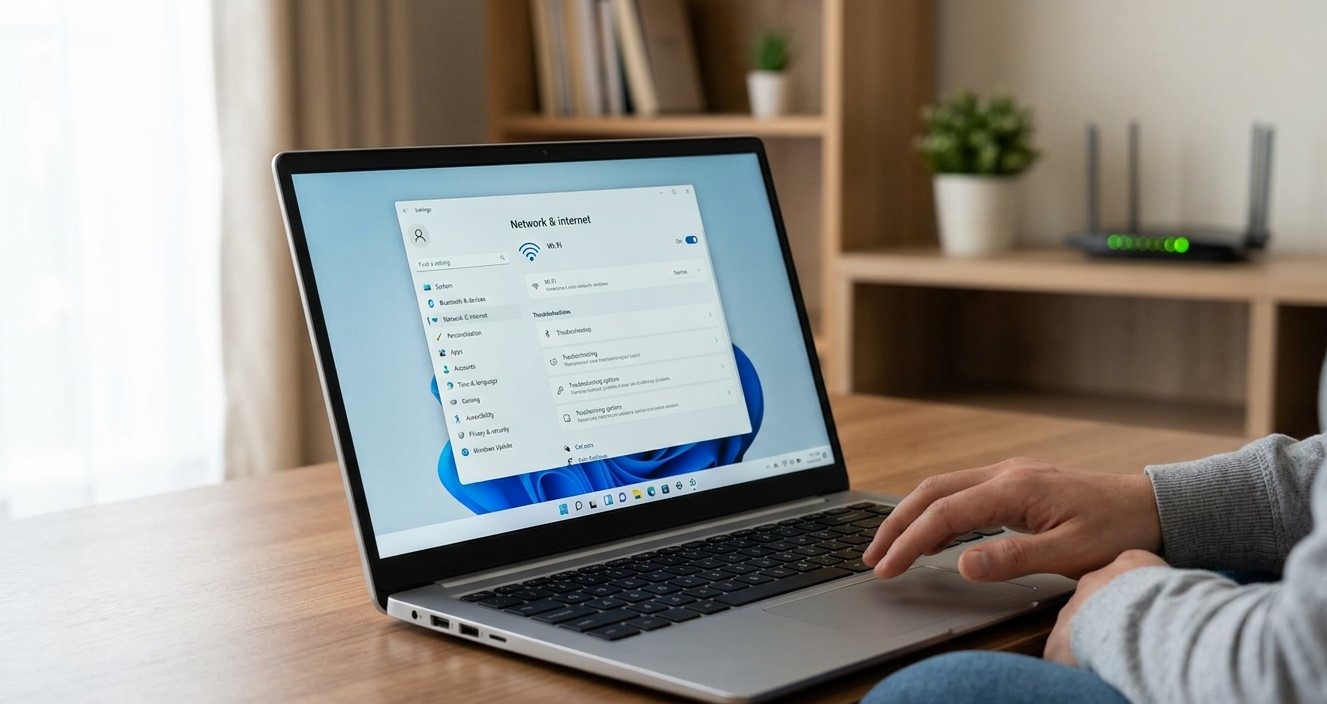
 civicautoglass
  Momentum Tyres
  Majestic taxis