
How SaaS Teams Can Turn Product Demo Recordings Into a Reusable Content System
A product demonstration is usually created for one immediate purpose.
A salesperson records a walkthrough for a potential customer. A product manager explains a new feature to the internal team. A support specialist shows how to solve a common problem, while a founder records a short launch video for the company website.
After the recording is shared, it is often forgotten.
The information remains valuable, but it is trapped inside a video timeline. When the marketing team needs a feature explanation, someone records it again. When support needs written instructions, an employee watches the video and manually writes down the steps. When a customer asks the same question, another demonstration is created from the beginning.
This duplication is unnecessary.
A well-recorded product demonstration can become the source for landing-page copy, help articles, captions, onboarding material, sales follow-ups, social posts, internal training, and frequently asked questions.
The key is to treat the recording as source material rather than as a finished asset.
Start With a Demonstration That Has One Clear Purpose
A useful product demonstration should answer a specific question.
Weak demonstration topics are broad:
- Complete product overview
- Everything you need to know
- Full platform demonstration
These recordings often become long and difficult to reuse because they mix several audiences and goals.
A stronger demonstration focuses on one outcome:
- How to invite a new team member
- How to export a monthly report
- How to connect a payment account
- How to review an uploaded document
- How to change notification settings
- How to create a new customer workspace
A focused recording is easier to understand, transcribe, divide into chapters, and convert into written documentation.
Before recording, define:
- Who is watching?
- What problem are they trying to solve?
- What should they be able to do after watching?
- Which steps are essential?
- Which details belong in another demonstration?
This prevents the presenter from adding unrelated features that make the recording harder to maintain.
Use a Simple Demonstration Structure
Most software demonstrations can follow the same structure.
The Problem
Explain what the user is trying to accomplish.
The Starting Point
Show where the process begins inside the product.
The Steps
Complete the task in a logical order.
The Expected Result
Show what success looks like.
Common Problems
Mention one or two mistakes that may prevent the user from completing the task.
Next Step
Explain what the user can do after finishing the process.
This structure helps both the viewer and the team that will later repurpose the recording.
It also creates natural sections for a transcript, help article, chapter list, email, and support response.
Record the Final Product Interface
Product documentation becomes outdated quickly when the interface changes.
Before recording, confirm that the demonstration uses:
- The current navigation
- The correct button names
- The latest form fields
- The final feature behavior
- Realistic sample data
- A clean test account
- No private customer information
- The correct pricing or plan limitations
- The intended desktop or mobile layout
Avoid recording from a personal account containing customer names, email addresses, payment details, internal comments, or unfinished features.
A dedicated demonstration workspace makes the video easier to publish and reduces editing work.
The filename should also identify the product, feature, version, and recording date.
For example:
product-name-export-report-v3-2026-08-02.mp4
This is more useful than:
demo-final-new.mp4
Create a Searchable Source Transcript
A video is easy to watch but inefficient to search.
Someone may remember that the presenter explained an important limitation, but not whether it appeared at minute 4 or minute 14. A writer preparing a help article may need the exact sequence of steps without repeatedly pausing the recording.
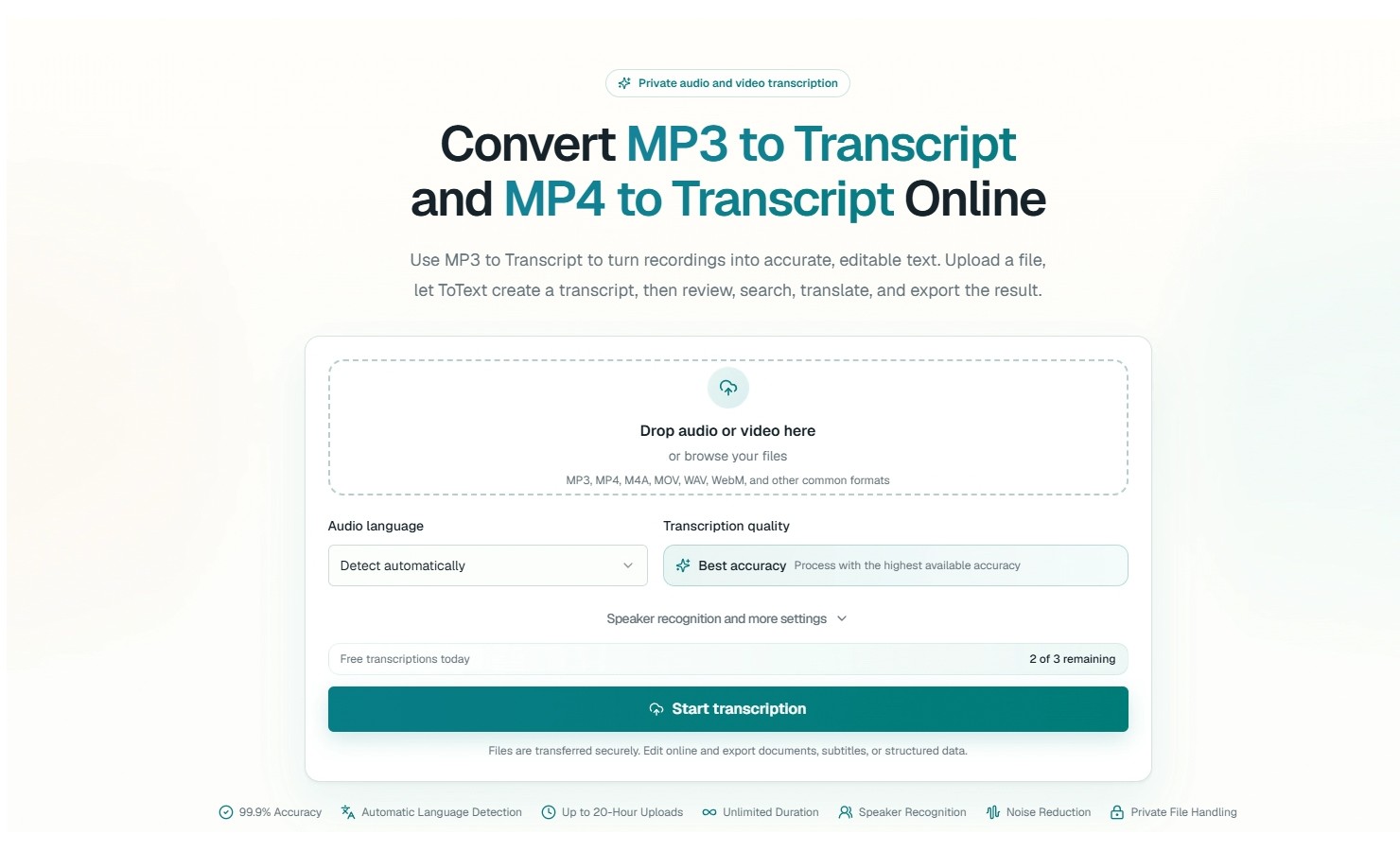
An online MP4 to Transcript workflow can turn the spoken explanation into searchable text while preserving the connection to the video.
The transcript makes it easier to locate:
- Feature names
- Button labels
- Setup requirements
- Warnings
- Examples
- Common mistakes
- Plan restrictions
- Recommended next steps
- Questions mentioned by the presenter
The transcript should remain a working draft.
Product names, technical terminology, file formats, numbers, and interface labels should be checked against the recording and the live product.
A transcript error that changes “Export CSV” to “Export PDF” may create an incorrect help article even when the rest of the text is accurate.
Separate Spoken Explanation From On-Screen Information
Product demonstrations often rely on visual context.
A presenter may say:
Click this button and choose the second option.
That sentence may be understandable while watching the screen, but it becomes useless in a written guide.
When converting the transcript into documentation, replace vague visual references with specific instructions.
The written version might say:
Select Export in the upper-right corner, then choose CSV from the format menu.
The transcript should preserve what was spoken. The help article should clarify what the viewer could see.
Pay special attention to phrases such as:
- Click here
- Choose this
- Move it over there
- Open this menu
- Use the option below
- Go back to the previous page
Each phrase may need additional context before it becomes useful written documentation.
Turn the Demonstration Into a Help Article
A help article should not be a word-for-word copy of the transcript.
Spoken explanations often contain repetition, pauses, corrections, and informal comments. Written instructions need a clearer structure.
A practical help article can include:
Overview
A short description of what the feature does.
Before You Begin
Accounts, permissions, files, or settings required before starting.
Step-by-Step Instructions
Numbered actions in the order they should be completed.
Expected Result
What the user should see after finishing.
Common Problems
Likely errors and how to resolve them.
Related Features
Other documentation that may help the user continue.
Last Reviewed
The date when the article was checked against the live product.
Screenshots can be added when a visual reference is genuinely necessary. However, every screenshot creates another asset that may become outdated when the interface changes.
Use images to clarify difficult steps, not to repeat every click.
Extract Better Landing-Page Copy
Product teams often describe software differently from customers.
Internal language may focus on architecture, automation, or technical capability. Customers usually focus on the task they need to complete.
A product demonstration can reveal both types of language.
Review the transcript for statements that explain:
- The problem being solved
- The time-consuming alternative
- The important result
- The difference from the previous workflow
- The type of user who benefits
- The most common concern
- The moment when value becomes visible
These sections can support:
- Landing-page headings
- Feature descriptions
- Benefit statements
- Comparison pages
- Frequently asked questions
- Product update announcements
- Onboarding messages
Do not copy every spoken statement directly into the website.
Instead, identify the clearest explanation and rewrite it for the intended page.
For example, a presenter may say:
Previously, the user had to download the report, open another program, remove several columns, and upload the result again.
A landing page might turn this into:
Prepare export-ready reports without manually cleaning the file in another application.
The recording provides evidence and context. The website copy presents the idea more efficiently.
Build a Frequently Asked Questions Section
Demonstrations often contain answers to questions that were not included in the original script.
The presenter may naturally explain:
- Which file formats are supported
- Whether the feature works on mobile
- Who can access the setting
- What happens after an export
- Whether a change can be reversed
- Why a button is unavailable
- Which subscription includes the feature
- Whether information is saved automatically
These explanations can become FAQ entries.
A useful FAQ answer should:
- Answer the question immediately.
- Explain any important condition.
- Link to the detailed instructions when necessary.
- Avoid repeating the complete help article.
- Be reviewed when the product changes.
Questions can also be collected from support tickets, sales calls, product reviews, and customer interviews.
The demonstration transcript then provides a starting point for creating a consistent answer.
Create Captions for the Original Video
The final demonstration video may be published on a product page, help center, learning portal, or video platform.
Captions make the recording easier to follow when viewers cannot use sound or when the presenter speaks quickly. They also help users recognize product names and technical terms.
A dedicated MP4 to SRT workflow can create timed subtitle cues from the final MP4 recording.
Caption work should begin after the main video edit is complete.
Removing an introduction or shortening a demonstration after captions have been created can shift the timing of every later cue.
Review the subtitle file for:
- Product and company names
- Interface labels
- Numbers and prices
- Technical terminology
- Cue timing
- Long lines
- Fast sections
- Slide or screen changes
- Existing text already visible in the interface
A correct transcript does not automatically create comfortable subtitles. Long spoken sentences may need to be divided into shorter cues that viewers can read while also watching the demonstration.
Create a Sales Follow-Up From the Same Source
Sales teams frequently record personalized product walkthroughs.
After the call, the representative may send a short message such as:
Here is the demonstration we discussed.
This provides little guidance to the recipient.
A better follow-up can use the transcript to create a concise summary:
- The customer’s original problem
- The feature demonstrated
- The relevant workflow
- The expected result
- The main limitation discussed
- The next agreed action
- A link to the recording
This helps the customer remember why the demonstration mattered.
It also gives colleagues who did not attend the call enough context to review the recommendation.
The transcript should not be shared automatically when it contains private questions, internal discussion, or information from other customers. Create an appropriate summary for the intended recipient.
Turn Product Walkthroughs Into Onboarding Material
A demonstration for one customer may answer a question shared by many new users.
When the process is general and contains no private information, it can become part of the onboarding system.
Possible onboarding assets include:
- A short getting-started video
- A written checklist
- A welcome email
- An in-product message
- A setup guide
- A knowledge-base article
- A troubleshooting page
- A short quiz for internal staff
The same source recording can support several formats, but each format should remain focused.
A welcome email should not contain the complete transcript. It may only need three steps and a link to the video.
A help article can provide more detail. An internal training document may include additional explanations that customers do not need.
Capture Follow-Up Ideas With Voice Notes
Product and marketing ideas often appear after the demonstration is finished.
A presenter may realize that one explanation was unclear. A support specialist may suggest another example. A product manager may record a quick note about an interface change while away from a computer.
Phone voice notes are commonly saved in M4A format.
An M4A to Text workflow can convert these short recordings into searchable drafts that can be added to the content backlog.
A voice note might become:
- A correction for the help article
- A new FAQ entry
- A replacement demonstration script
- A feature announcement
- A support response
- A content idea
- A product feedback item
- A task for the next release
Every voice note should still be connected to the correct product and feature.
A useful record includes:
- Recording date
- Person who recorded it
- Feature or page affected
- Proposed change
- Approval status
- Person responsible
Otherwise, voice notes can become another unorganized archive.
Maintain One Approved Source
Problems appear when several teams create their own versions of the same explanation.
Marketing describes the feature one way. Support uses older instructions. Sales promises a capability that changed in the latest release. The help center contains screenshots from a previous interface.
Create one approved source record for each important demonstration.
The record can include:
- Final video
- Reviewed transcript
- Current help article
- Caption file
- Approved product description
- Related FAQ entries
- Owner
- Product version
- Last review date
- Next review date
This does not mean every department must use identical wording.
It means that their content should begin with the same confirmed information.
Add Version Information
Software changes over time.
A demonstration recorded today may become inaccurate after navigation, permissions, pricing, or workflow changes.
Each content asset should record:
- Product version
- Recording date
- Publication date
- Last review date
- Feature owner
- Content owner
- Known limitations
- Replacement status
When a feature changes, search the content library for its name.
This can reveal every video, transcript, article, caption file, email, and onboarding guide that may require an update.
Do not silently replace the historical recording when it documents an older workflow that still matters to existing customers. Mark it as archived and link to the current version.
Measure Whether the Content Is Useful
Repurposing a demonstration is only valuable when the resulting content helps users or the business.
Possible signals include:
- Help-article views
- Search terms used in the knowledge base
- Video completion rate
- Support tickets before and after publication
- Clicks from onboarding emails
- Landing-page conversion rate
- Questions asked after a sales demonstration
- Article feedback
- Subtitle usage
- Time required to resolve related support requests
Do not judge every asset by the same metric.
A landing page should support evaluation and conversion. A help article should help users complete a task. An internal guide should reduce inconsistent explanations. A caption file should improve the viewing experience.
The recording may be shared across these assets, but each one has a different purpose.
A Repeatable Demo-to-Content Workflow
A practical process can be summarized as follows:
- Choose one audience and one product task.
- Record the final approved interface.
- Use a clear filename and version number.
- Generate a searchable, timestamped transcript.
- Correct product names, interface labels, and technical details.
- Clarify visual references that do not make sense in writing.
- Create a structured help article.
- Extract useful product language for landing pages and FAQs.
- Generate and review captions from the final video.
- Create an appropriate sales or onboarding summary.
- Store follow-up voice notes with the correct feature record.
- Keep the video, transcript, documentation, and captions together.
- Assign an owner and review date.
- Update or archive the assets when the product changes.
- Measure whether each asset helps its intended audience.
Final Thoughts
A product demonstration should not be viewed as a video that is recorded once, sent to one person, and forgotten.
It contains product knowledge that can support marketing, sales, onboarding, customer success, and technical support.
The recording provides visual context. The transcript makes the explanation searchable. The help article turns the process into clear instructions. Captions improve the original video. Follow-up notes help teams maintain the information as the product changes.
The most efficient content workflow does not begin from an empty page every time a new asset is needed.
It begins with one reliable source and transforms that source into the format required by each audience.
 primafelicitasltd