

When you upload a PST file to Outlook Web Access, you move personal storage table files that hold email, contacts, and calendar information into the web-based version of Microsoft Outlook. People commonly have to do this when transitioning from the desktop version of Outlook to the online app. A lot of people have trouble with this procedure; therefore, they need clear instructions on how to manage their email data well in the web environment. This tutorial will show users how to move PST emails into Outlook Web Access step by step, including all of its features.
Now Download The Free Demo Version
An Overview of Outlook Web Access
Microsoft produced Outlook Web Access, or OWA for short. It’s a web-based email client that lets you access your MS Outlook email, calendar, contacts, and tasks from any device that is connected to the internet. It makes it easier to deal with emails without having to install the full version of Outlook on a desktop computer. OWA keeps the basic capabilities of Outlook, such as sending and receiving emails, organizing messages into folders, and making appointments. However, it has a relatively easy-to-use interface that can be accessed using web browsers.
Why do You Want to Move PST to Outlook Web Access?
Before we get into the procedures, let’s talk about why you would want to upload a PST file:
- Access from anywhere You can check your email from anywhere with an internet connection with Outlook Web Access.
- Centralized Management: Keeping all your emails in one place by uploading your PST files makes it easier to keep track of your communications.
- Working together: If you work in a team, your emails in the web app would make it easy to share information and work together.
It’s crucial to know the procedures involved in manually uploading a PST file to Outlook Web Access so that the process goes well.
Now, let’s look at the Manual Way to Upload your PST.
1. Import PST to Outlook Web Access for Free
- First, get Outlook for Windows and install it on your PC.
- To add your account, open Outlook, click on File, then Add Account, and enter your Outlook.com account information.
- To finish setting up your Outlook.com account, follow the steps presented.
- After you’ve set everything up, go back to the File menu and choose Open Data File.
- Choose “Import Outlook Data File,” then find & open the Outlook PST file on your PC.
- Click the Finish button after choosing to start the process of importing the PST file into your Outlook.com account.
Successfully finished, you have finished importing the PST file into Outlook Web Access.
Problems with the Free Method
- To do this, you need to install the desktop version of Outlook, which not everyone can have. People who predominantly use web-based apps don’t normally choose desktops for all of their apps.
- It takes a long time to import a PST file by hand, especially when there are a lot of files to move or the data is very large.
- During the import process, things like corrupt files or compatibility difficulties can happen, and consumers can’t do much to fix them without technical help.
- During the import process, some things, such as some custom settings, formatting, or email properties, can be lost.
- It can’t import many PST files at once, which wouldn’t be very helpful for someone who has a lot of PST files to upload.
2 Great Ways to Professionally Batch Move PST Emails into Outlook Web Access
The Softaken Outlook PST Conversion Suite Tool can help you fix any problems that can come up throughout the migration process. The software makes it very easy to move PST emails into Outlook Web Access, along with all of your data. This only takes a few clicks and doesn’t take much time or effort. To open PST files in Outlook Web App, follow these steps.
Important Steps for Using Software
Step 1: Download and Install
You can get the Softaken PST Conversion Suite from the official website.
Set it on your Windows computer.
Step 2: Start the Tool
To load your PST files, open the application and click on Add File(s) or Add Folder.
You can add one PST or more than one PST for batch transfer.

Step 3: Look at the PST data
The software will show all of your mailbox folders (such Inbox, Sent Items, Drafts, etc.) after the files are loaded.
Before you import, you can see a preview of emails, contacts, calendars, and attachments.
Step 4: Select Office 365 as the output
Choose Office 365 as your destination in the Export Options.
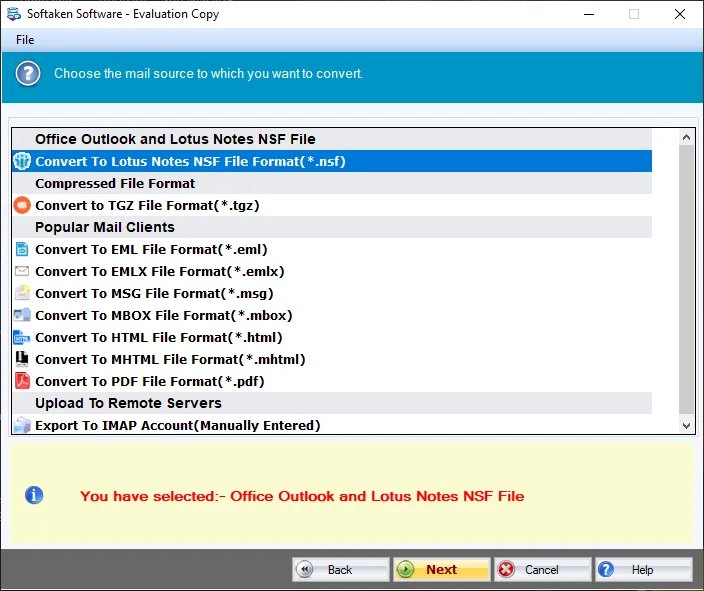
Step 5: Type in your Office 365 login information
Type in your Office 365 email address and password.
The tool connects to your account using secure authentication.
Step 6: Use Filters (Optional)
You can choose certain folders or use date filters to move only the things you need.
Step 7: Begin the move
Press the button that says “Start Uploading.”
The tool will begin sending your PST data to Office 365.

Why do Experts Prefer to the Softaken PST to Office 365 Migration Tool?
This program keeps the original folders and subfolders of your emails while moving PST files to your Outlook online account.
- Keeps critical information—PST to Outlook Web Access email transfer keeps important information like “to,” “from,” “Cc,” and “Bcc.”
- Attachments are vital for email exchanges, and this program makes sure that all of your attachment files stay intact during the migration.
- You can also change PST files into MBOX, EML, RTF, HTML, and other file types.
- In addition to letting you import PST files into Outlook Web Access, this software also lets you move PST files to other email services, such as Gmail, G Suite, Office 365, Yahoo Mail, and any other service that supports IMAP.
- This application gives free demo versions.
Last Closure
In short, users can move their email, contacts, and calendar information to a web-based platform by uploading a PST file to Outlook Web Access. For a lot of people, this procedure might be hard, but with the appropriate help, it becomes easier. Users can easily manage their email data in Outlook Web Access and access it from any device, whether they utilize the manual ways or the professional tools indicated in this blog article.
 Leighton Fine Art Ltd
  Zain Ali